DragonWriter
Stories
Stories are the books, novels, or stories you are writing.
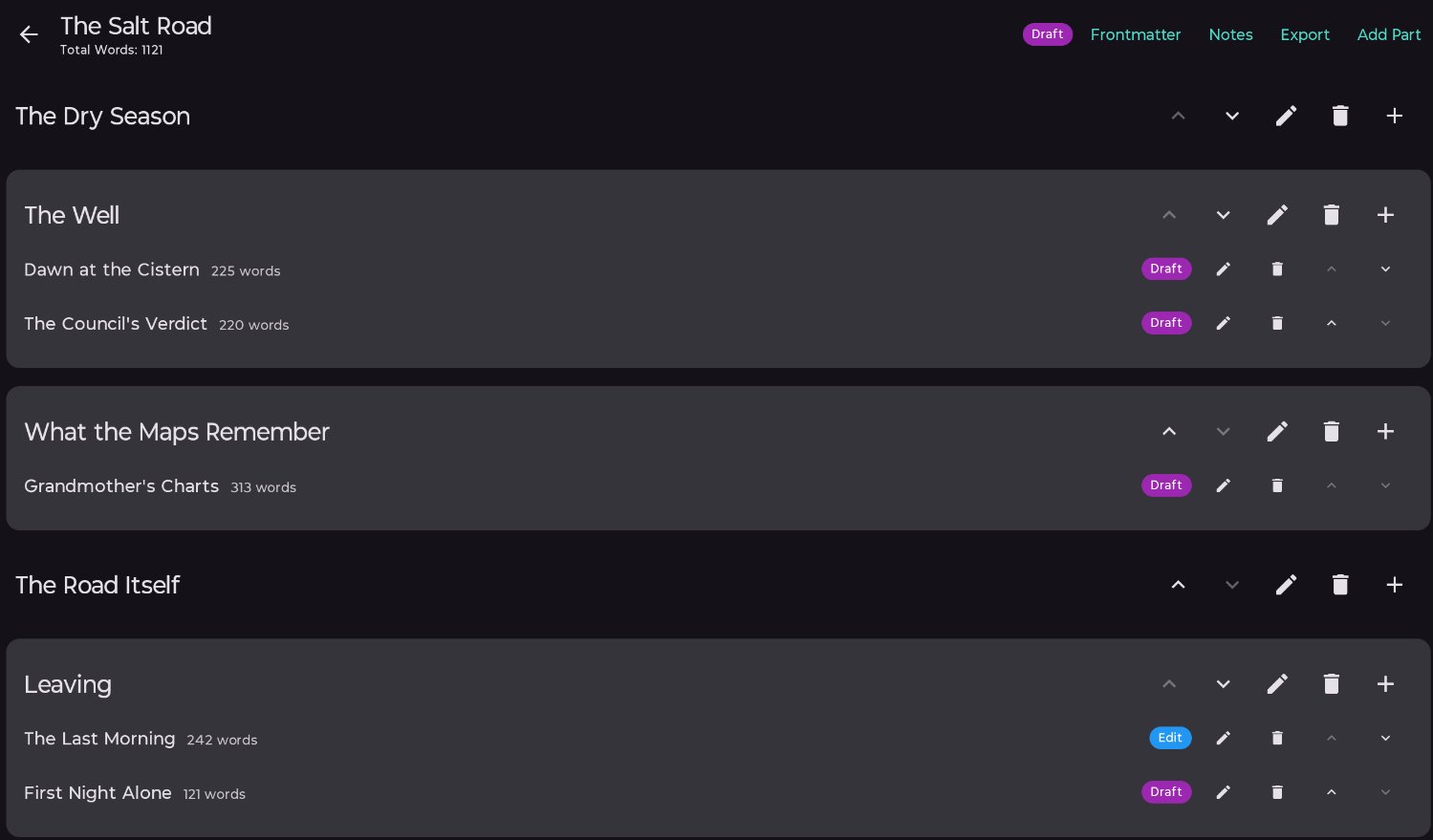
Stories are divided into parts, parts contain chapters, chapters contain scenes, and scenes are what you write in.
You can create a new story by tapping the + icon in the bottom right of the home screen.
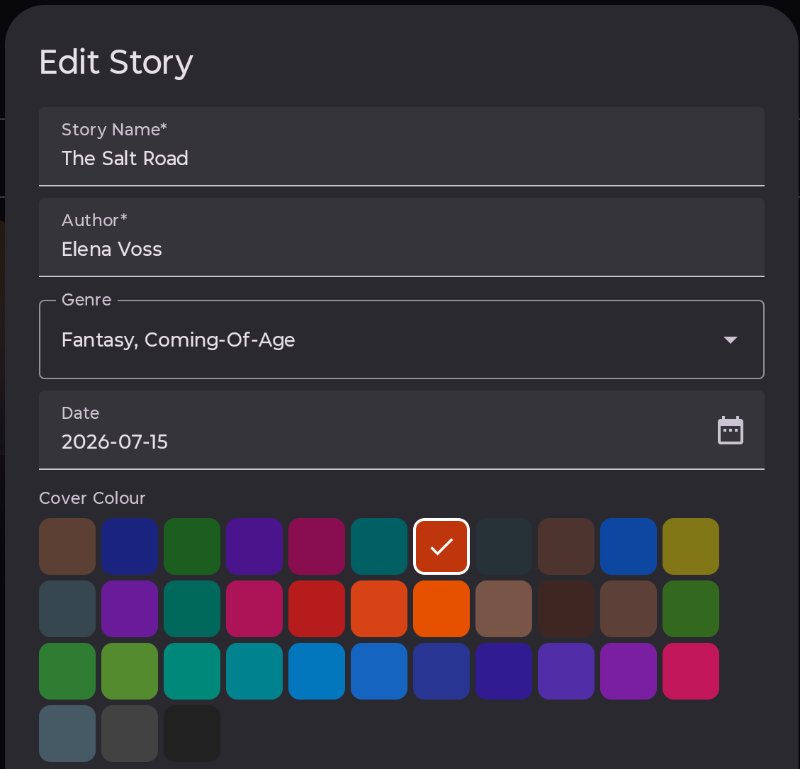
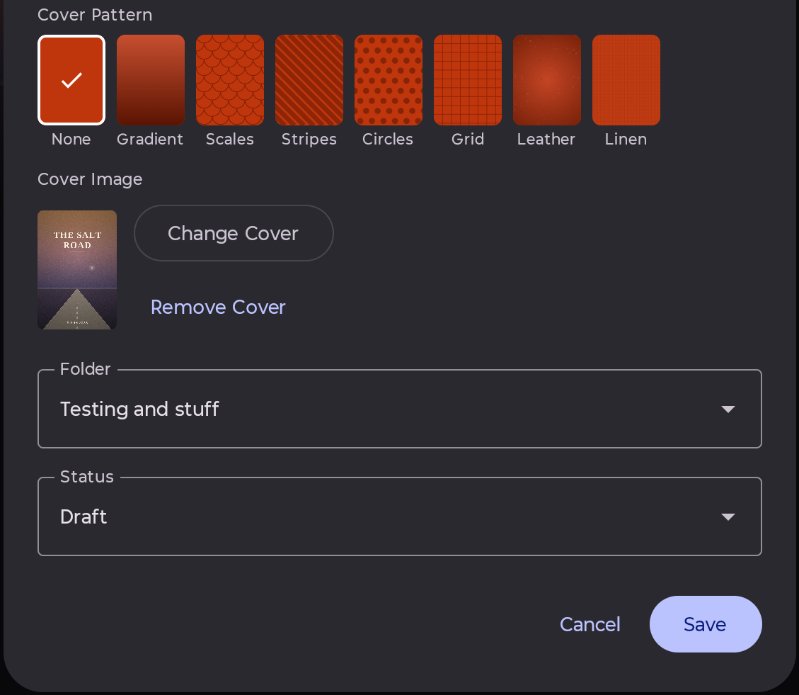
Fields:
- Story Name: What your story is called. Required.
- Author: Name of the author or authors. Required.
- Genre: Select one or multiple genres from the list. Optional.
- Date: Use the calendar icon to select a date. Optional.
- Cover Colour: A random colour will be chosen. Required.
- Cover Pattern: Select from a small range of patterns. Required.
- Cover Image: Upload your own cover image. Suggested ratio is 1:1.6 (height is 1.6x the width). Suggested size is 1600px wide x 2560px high. Optional.
- Folder: Current folder is selected by default. Where you want to store your story. This can be changed later. Required.
- Status: The overall status of where this story is at. Plan by default. Options are Plan, Draft, Edit, Done. Required.
Once you have created your story, click on the story (book) tile to go into it.
You will have a blank canvas to start with. You will need to make at least one part to get started. See the next page, parts, for more.
The story structure ends up looking like this:
Cover colours and patterns
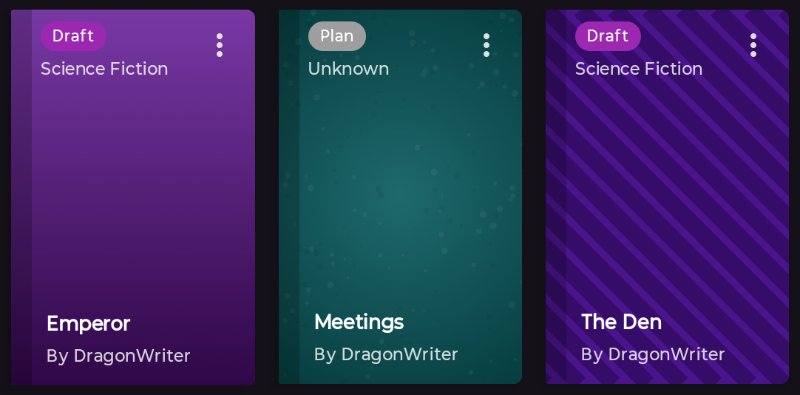
If you don't upload a cover for your story, you can choose a colour and pattern. This will show in the home view where you see your stories, and will also be used in EPUB and PDF exports.
Published 3 July 2026 · Last updated 16 July 2026